Agilitest Enterprise allows you to synchronize your scripts with your team.
By connecting to a server, scripts from your joint projects can be synchronized with the rest of your team. You will be able to see modifications, additions and removals in real time.
This feature is designed to enhance collaborative work and make it more efficient.
It works for Windows and for Linux as well.
Install a server
From the “Help” menu in Agilitest,

Click on download “Agilitest Enterprise server”
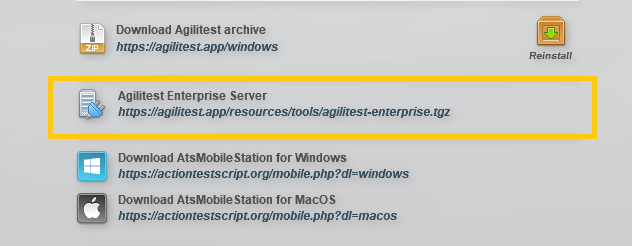
The file is in .tgz format
You will need to extract the zipped files into a directory of your choice.
If you are on Linux:
Run the command: red5.sh
If you are on Windows:
Run the command: red5.bat
The Agilitest Enterprise server is available on your network, depending on the IP address of the machine on which it is installed.
🔸 Warning
Be sure to open port 1935 so that all machines can connect to it.
Connect to a server
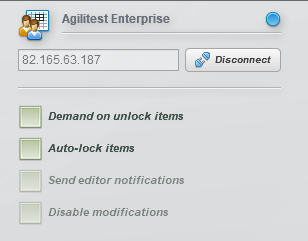
The connection to a server can be done in the Agilitest settings

Enter the IP of the machine in which the server is installed.
Lock a script
The script lock feature lets you block other users from using the script, and vice versa.
There are two ways to lock a script:
- With the auto-lock function
You can check the auto-lock option in the server configuration.
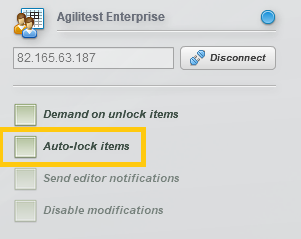
As soon as you modify a script, it will be locked automatically. It will unlock automatically when you save the script.
2. With a manual lock
- From the project explorer
Right click on a script, then click on “Lock” or “Unlock”.
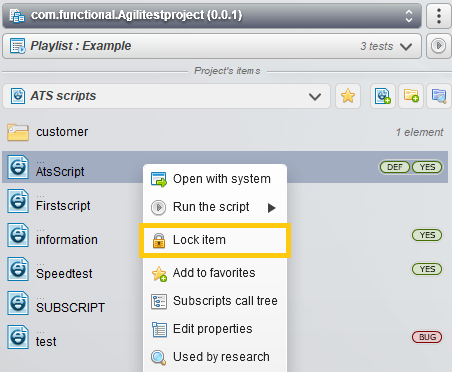
- Directly from in a script
At the top of your script, below the tab, you can click on the lock/unlock button
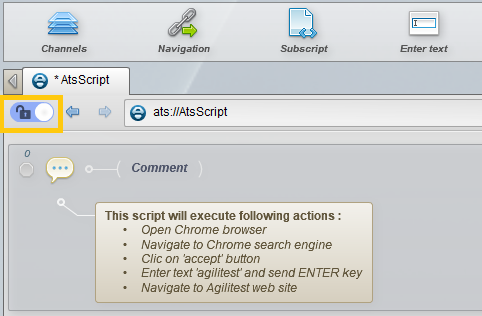
You have a locked script
Here is a script that is locked:
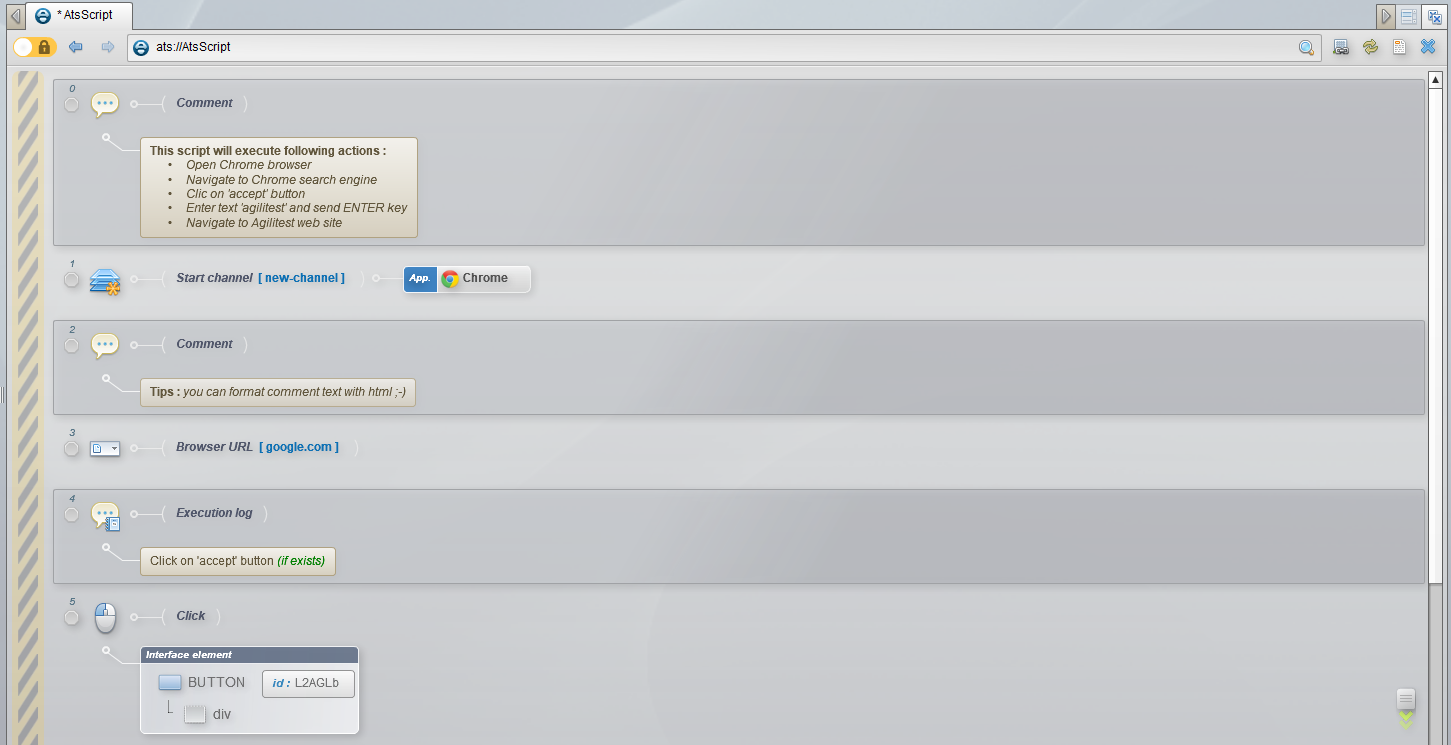
You can then make any changes you wish to your script: add actions, change elements, rename, etc...
Once the changes have been made, you can save the script and all other users will receive a notification that the script has been modified.
You wish to unlock a script that was locked by another user
The actions are grayed out because you won't be able to make any changes. You will only be able to execute the script.
As long as a script is locked, you won't be able to see any changes made by the user who locked it.
However, if you wish to use this script, you can ask the user who locked it to unlock it.
By checking the “unlock request” option in server configuration, you can choose to send a notification to the user who locked the script.
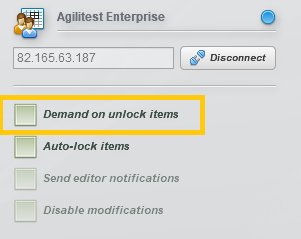
If you haven't checked this option, when you click on the padlock of a locked script, the other user will automatically receive a notification including a request from you to unlock the script.
The other user can choose to unlock the script or not.
By clicking on “Yes”, the script will be unlocked automatically and thus available for everyone.
Internal messaging
Once you are connected to a server a new tab will appear to the left bottom of the Agilitest editor.
This tab lists other users connected to the server.
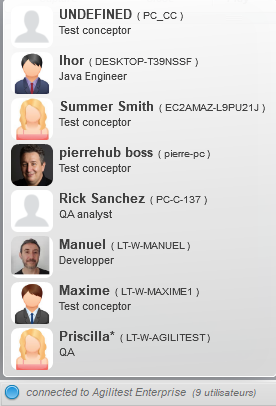
From this tab, you can send a customized message to other uthers.
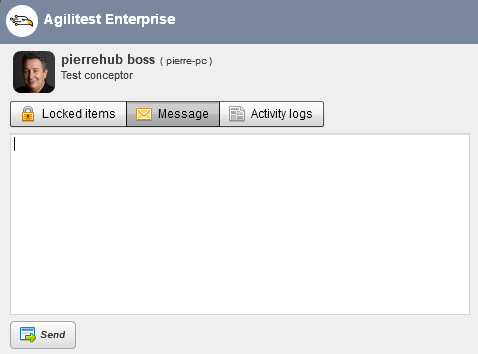
When you send a message to another user, they receive a notification directly in their Agilitest interface.
You can also view locked scripts directly from each user's profile.
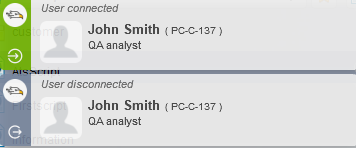
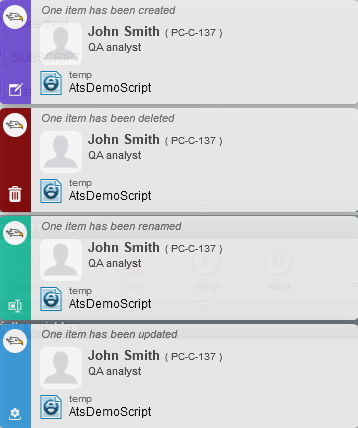
Several types of notification may appear when you are connected to the server with other users:
- When a user connects or disconnects
- The creation, modification, renaming or suppression of an item
- When a user lock or unlock a script
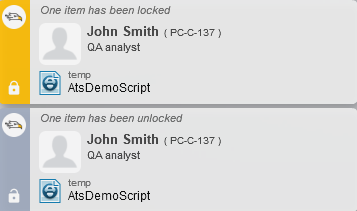
Notifications disappear after a few seconds, unless you click on them, in which case they will continue to appear.