Podman Desktop installation
Podman Desktop installation link: https://podman-desktop.io/downloads/windows
Once the file has been downloaded, double-click on it to open the installation panel.
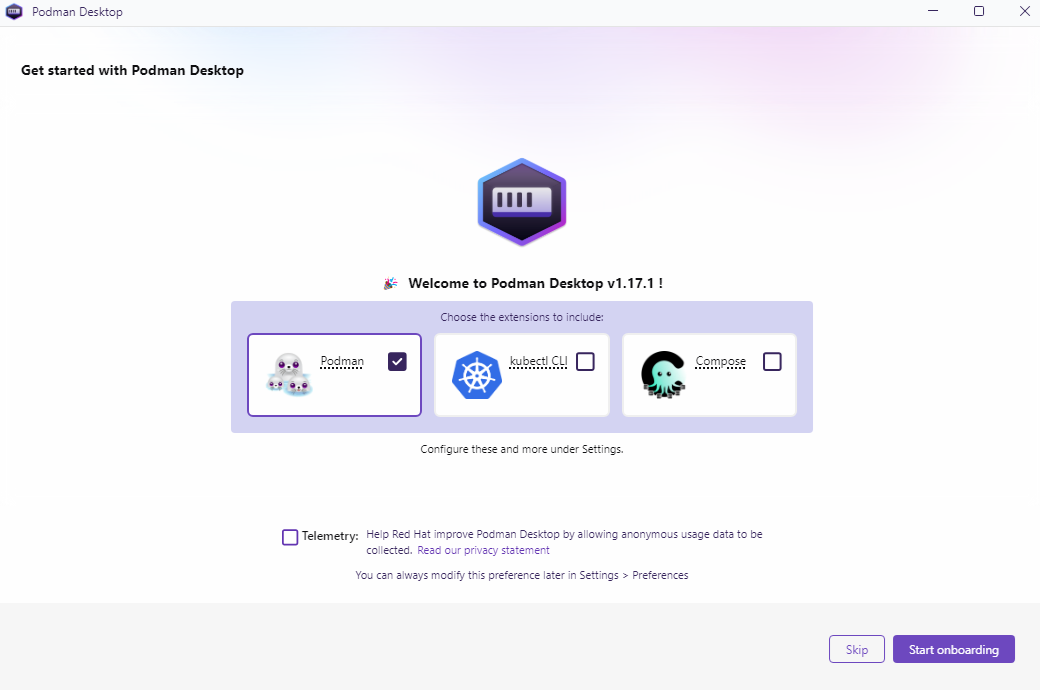
Select Podman to use with Agilitest. You can add other extensions to suit your own needs.
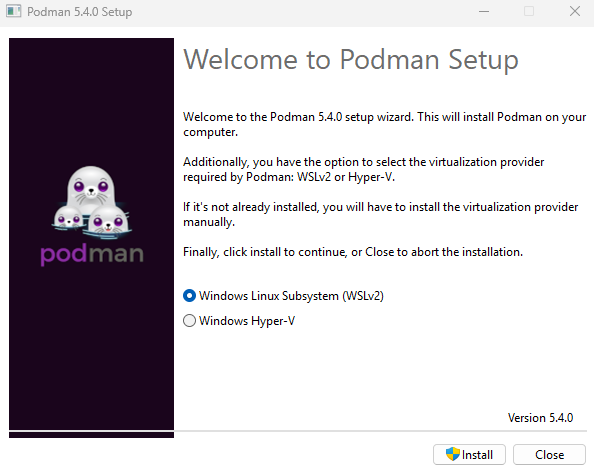
Select Windows Linux Subsystem (WSLv2), which is the installation recommended by Agilitest.
Installation will then begin. It may take several minutes.
Podman Desktop
You can now create a Podman machine from Podman Desktop.
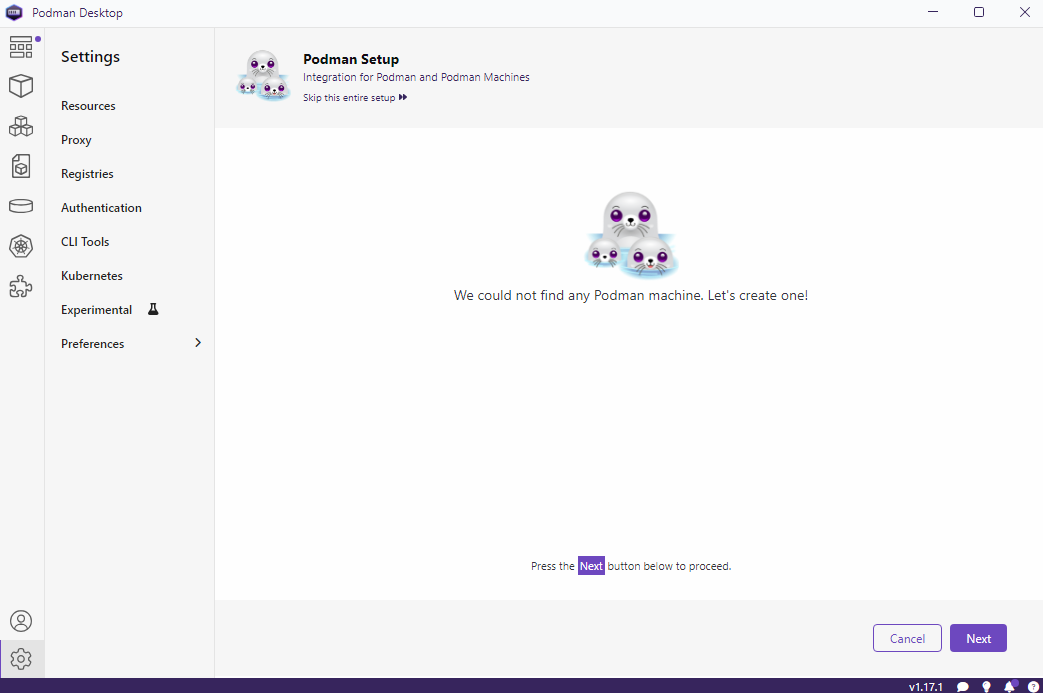
Click on the “Next” button
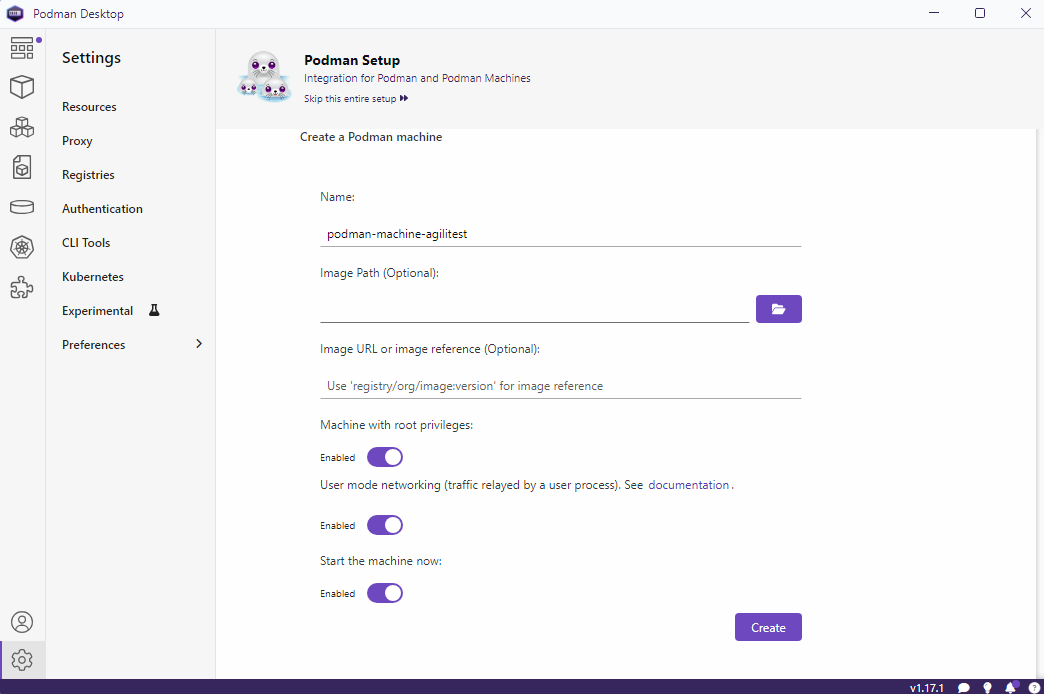
Enable the “User mode networking” if it is not the case
Click on “Create”
Once it is create, verify that the status is “running”
Podman is installed
Podman and Agilitest
Restart Agilitest.
Click on the container a the top right of the editor to open the Agilitest containers control panel
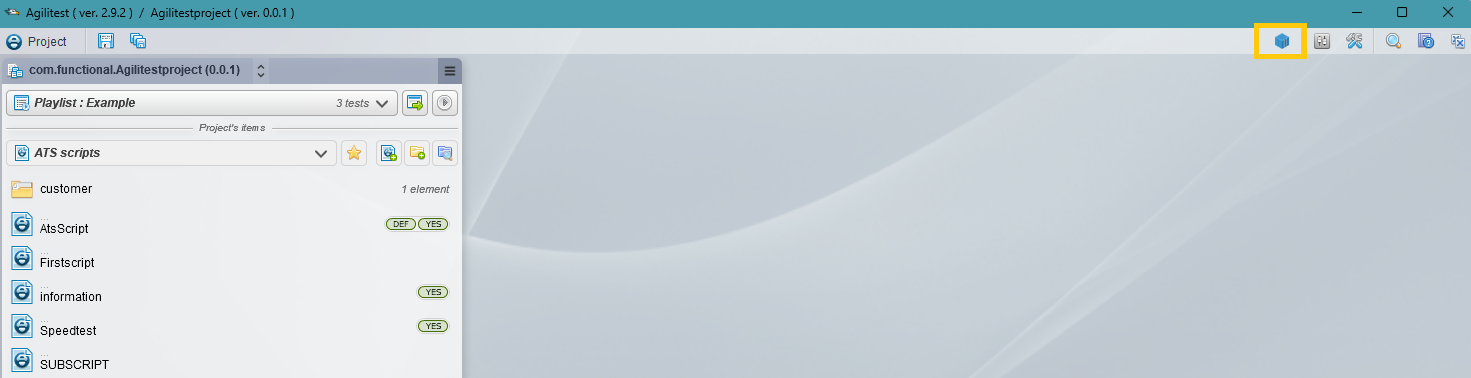
A first image need to be loading, which can take a little time.
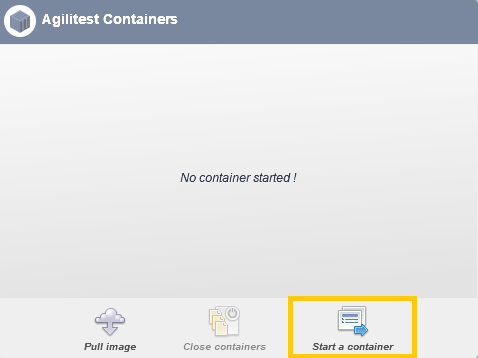
Click on start a container
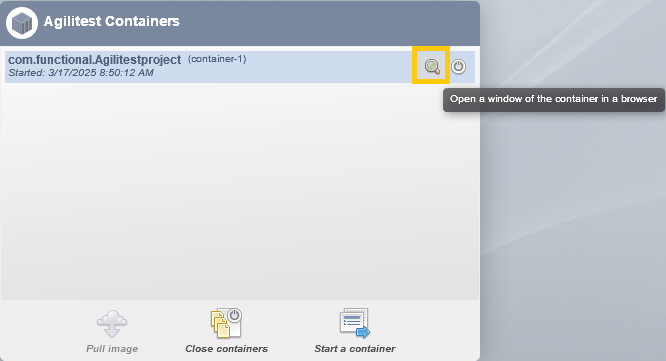
Once a container is launched, click on the magnifier icon to open the container in a browser.
In this container there are:
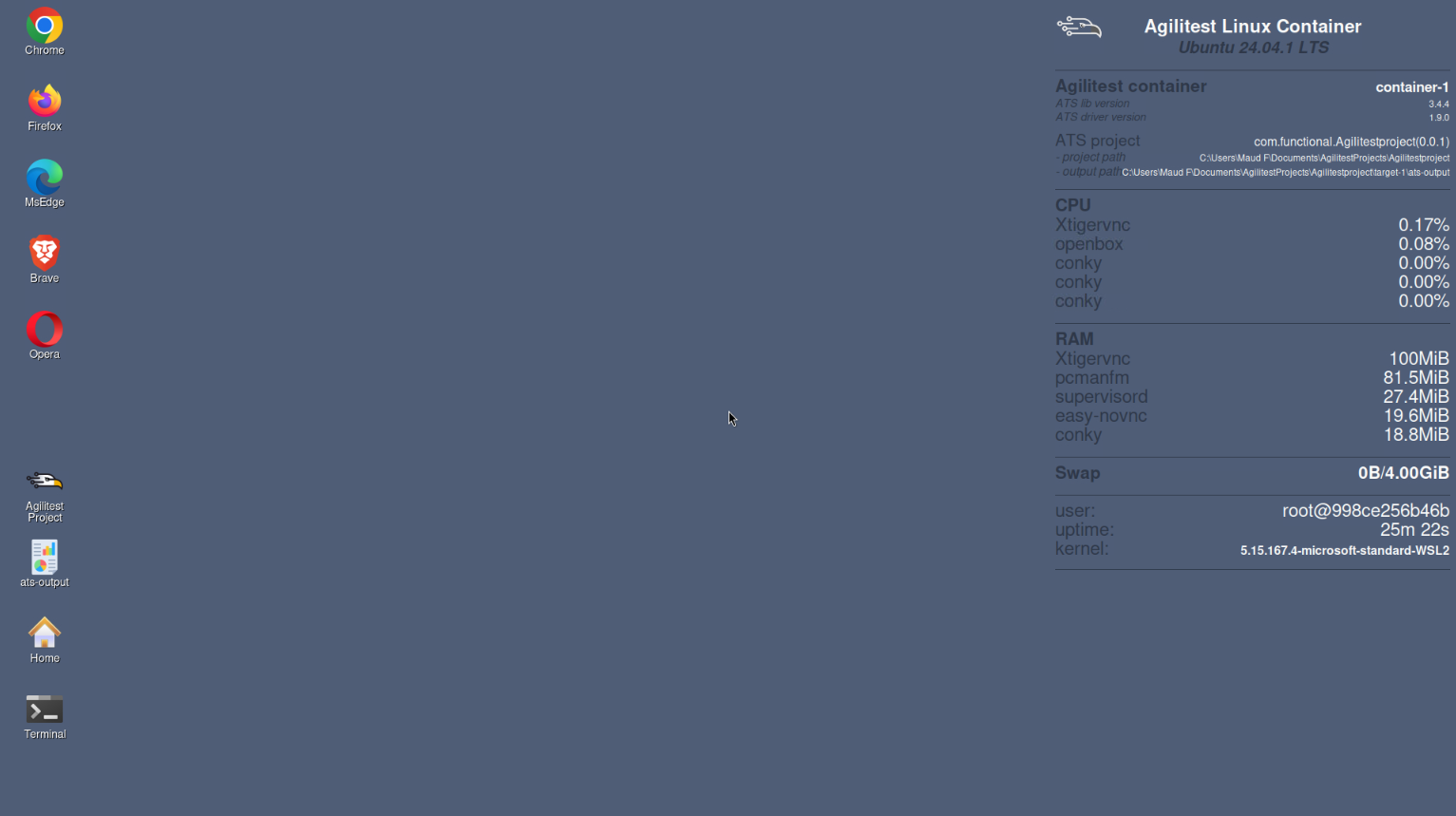
To the right:
- Linux distribution version ( LTS with Agilitest)
- ATS Project: name and version of a project
- container ID (different for each launched container)
- Project path
- Output path: Opens the repository in which the reports are generated
To the left, the icons:
- 5 browsers distributed in the image of the container maintained by Agilitest
- Agilitest Project: Opens a reprository of the project and the project path
- ATS output: Opens the repository of the container
- Home: Root of the VM system
- Terminal
Execute a test with Podman
In Agilitest’s project explorer,
Do a right clic on a script > Run a script> Execute in a container
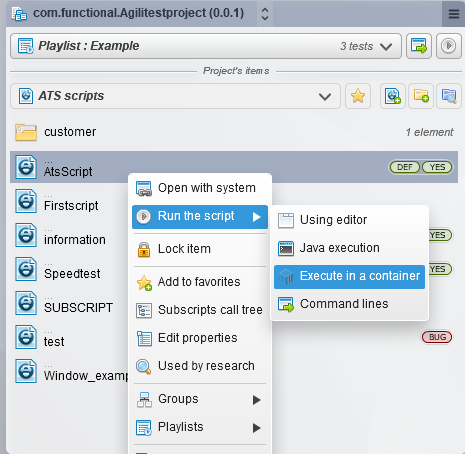
At the end of each execution, a report is generated.
All execution information is also available in the container's ATS Output.
Execute a Playlist
You can also execute playlists in a container.
To do that, go to the execution management menu,
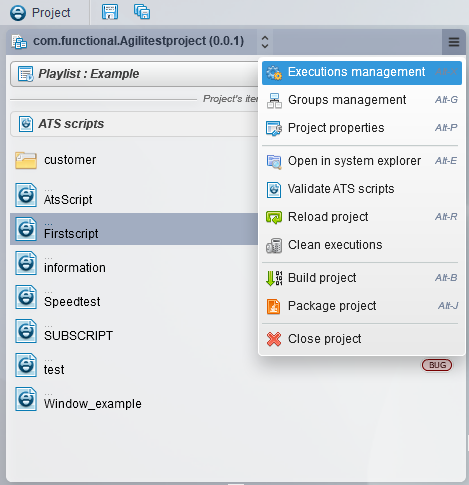
Click on the container menu,
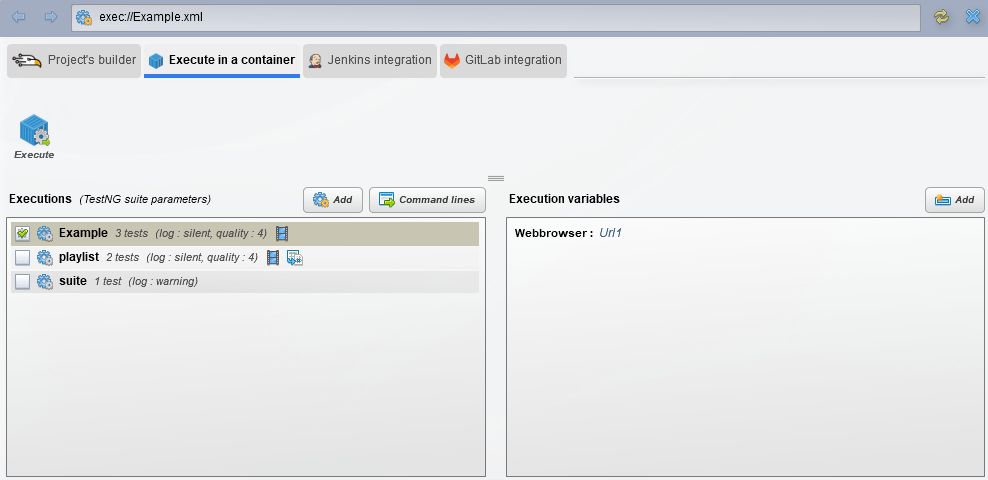
Select the playlists you want to execute and select the container and the execution will be launched.
Podman machine Podman and Agilitest
Images of containers
When you create a container from Agilitest, you'll find the corresponding image in the Podman Desktop.
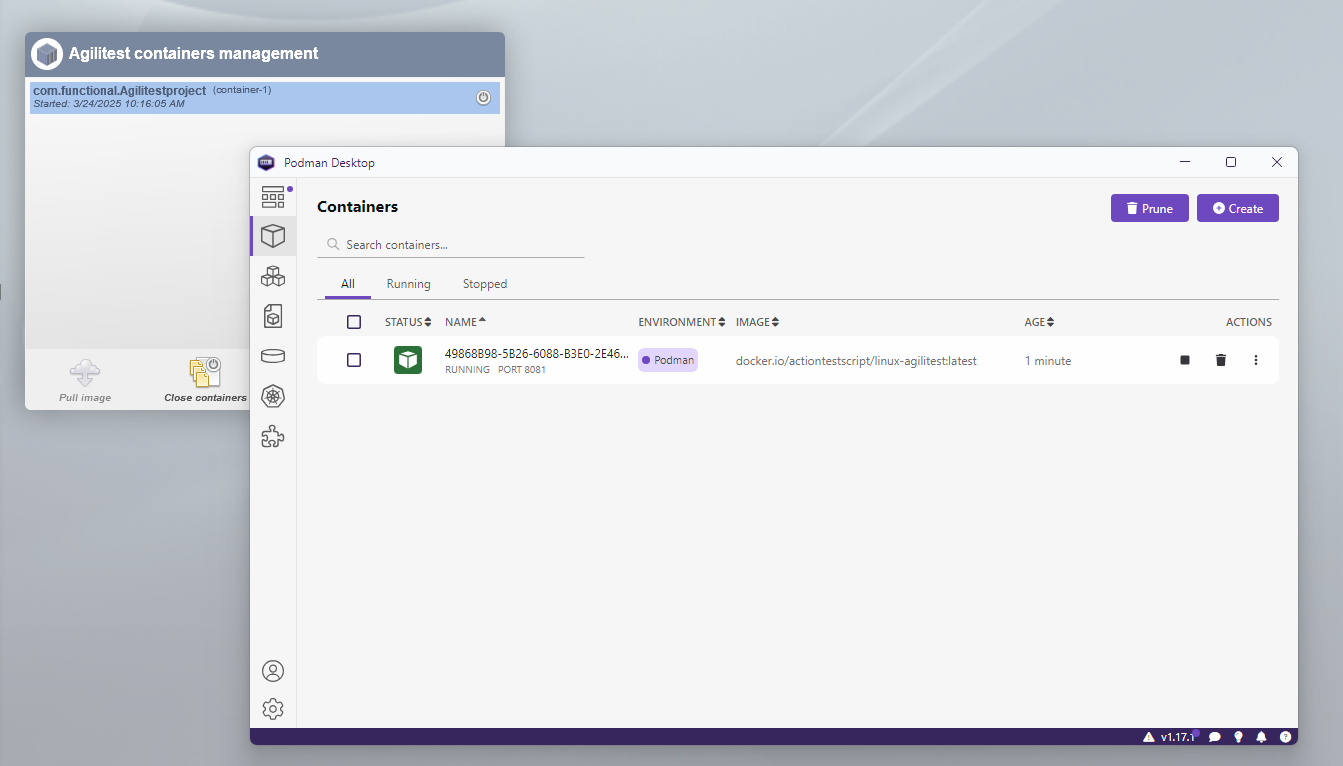
You can also have mutliple containers running.
When a container already has a test being executed, you can execute it on another available container, or create new one.
🔸 Warning
You need to distribute the executions according to need. The more containers and tests you run, the more machine resources are used
Switch machines
In the container management window, you can select your container tool.
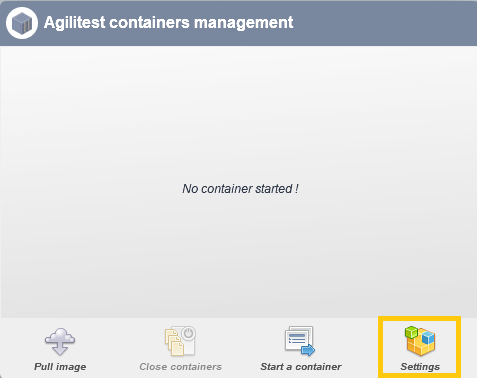
If Podman is installed and running on your machine, the tool will automatically be checked.
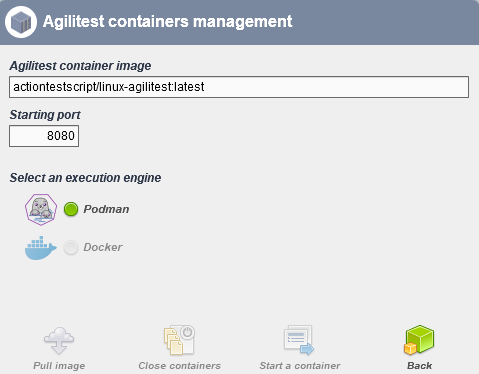
If you would like to switch to Docker, it's possible.
To do so, you need to stop the runner from Podman Desktop.
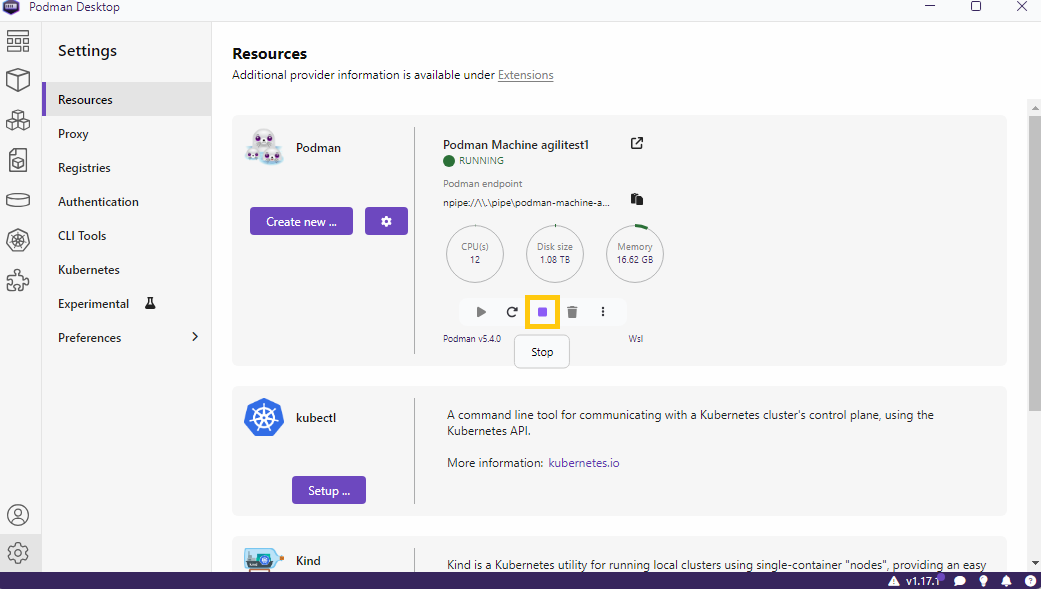
Then check Docker from the Agilitest option in container management.
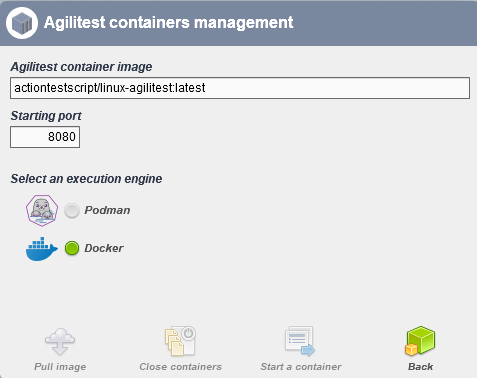
Agilitest will automatically open the checked option.
The same applies to Docker.
If Docker is checked and you want to switch to Podman, you will first have to quit Docker from the Docker Desktop.
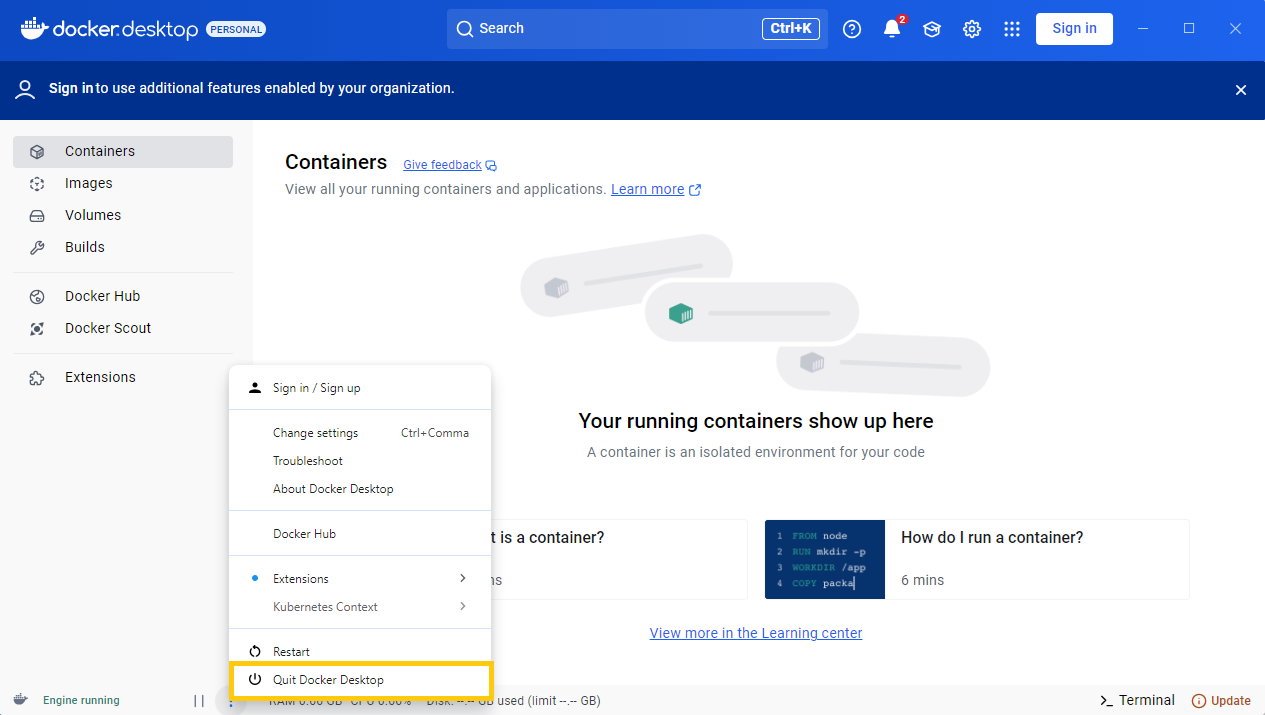
Then you can check Podman, which will be launched when you create a container.