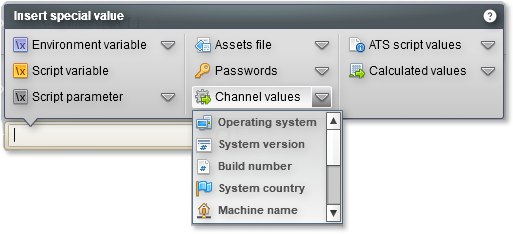
When you can enter text in an Agilitest action, it is possible to click on a button that will allow you to insert special values.

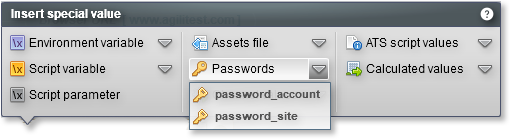
This will show you all the special values organized in a dedicated menu.
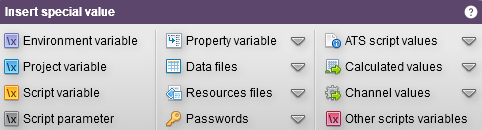
Among these special values are:
Environment variable
Environment variable are linked to the current execution.
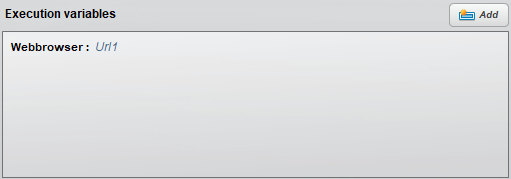
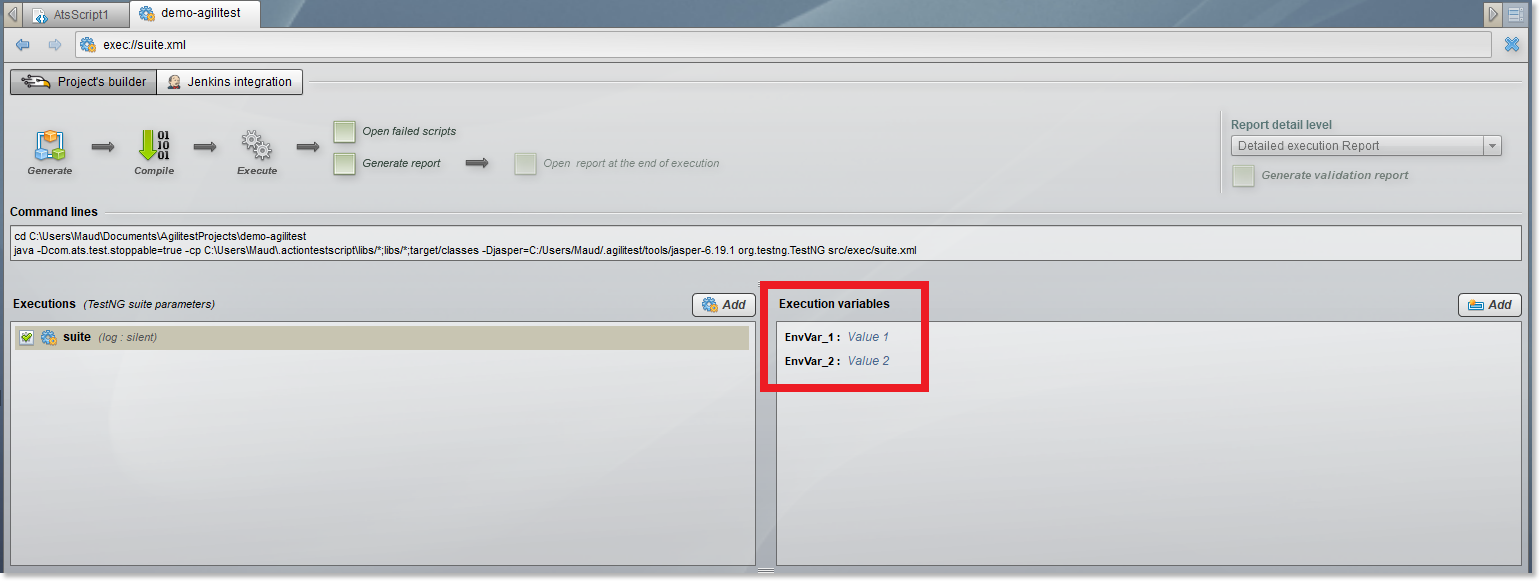
They are found in the execution variables in the project builder.
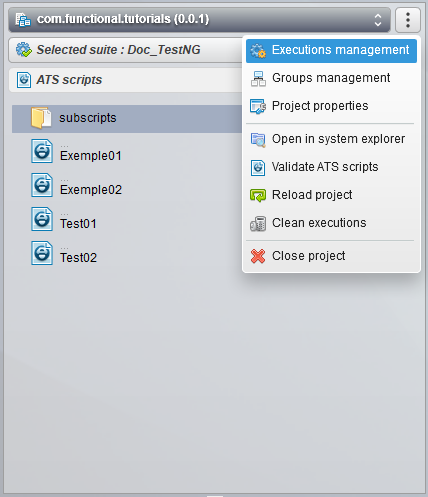
To access it, click on "Executions management" in the project explorer.
This will open the project builder page where you can find the environment variables in the special values box.
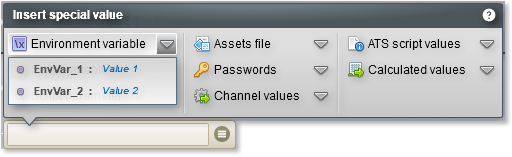
You can find the same information about environment variables in the special values menu.
Variable de projet
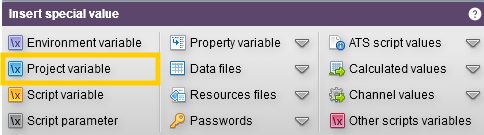
These are the global variables defined in the global properties of your Agilitest project. They are shared and accessible by all scripts in the project. Important
Script variable

The script variables correspond to the variables declared in a script.
In the editor, they can be found in the part dedicated to variables under the project explorer.
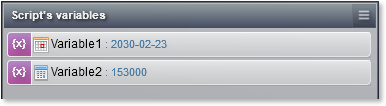
You can find the same information about script variables in the special values menu.
Script parameter
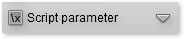
Script parameters are the parameters that are passed in a sub-script call.
They are found inside of the sub-script call action, in the added parameters.
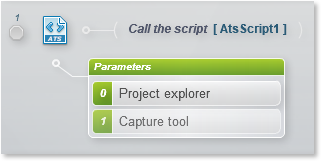
You can find the same information about script parameters in the special values menu.
Property variable

The property variable retrieves a specific system or runtime property using the $prop identifier.
Data files

This value corresponds to the path of all the files that are in the data files (Example: csv, json...). This corresponds to the relative path taken by these files.
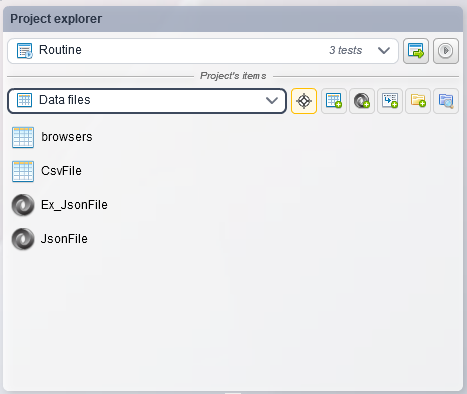
The values can be found in the project explorer, in the "Data files" view.
Resources file

Allows you to specify the relative path to resource files or assets (images, documents, configurations) that are embedded in the project tree and are necessary for the test to run successfully.
Passwords
The passwords correspond to all the passwords entered in a project.
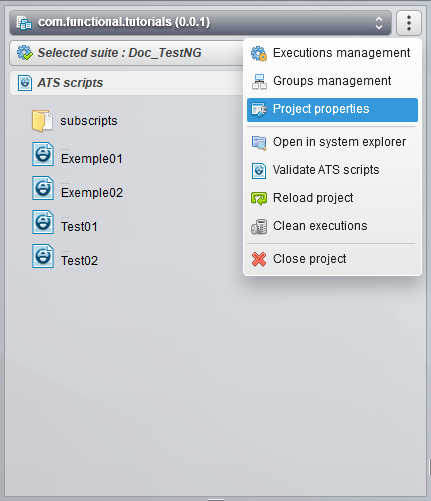
They can be found in the project properties page.
To access the properties, click on “Project properties” in the project explorer
In the properties you have access to the created passwords.
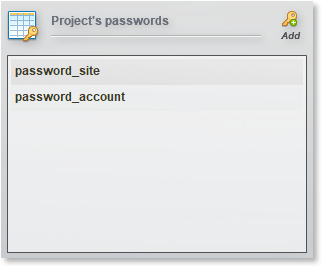
You can find the same information about passwords in the special values menu.
ATS script values

These are values intrinsic to the ATS execution engine. They are evaluated only during a Java execution and are derived from the root script (Top script).
ATS script values are values that are only valued in a Java execution.
Calculated values
The calculated values are summarized in a drop-down menu.
These values are: Now, Today, Unique ID, Random string, Current iteration, Iterations count
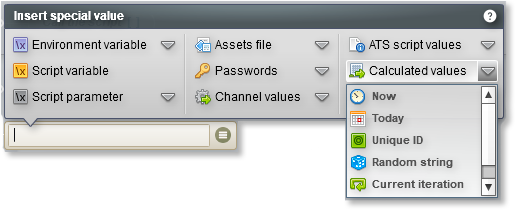
The random character variable can take various forms, depending on the data entered.
You can define the number of characters you want to appear and the way they are presented in the variable.
Examples of rnd_string forms:
$rnd(10) ; $rnd(5) = The value entered will indicate the number of characters to appear
$rnd(10,upp) = Characters will only appear in uppercase
$rnd(10,low) = Characters will only appear in lowercase
$rnd(10,num) = Characters will appear in numeric form only
$rnd(10,111111222223) = The odds will be stronger on multiple characters. In probability, the string will display more characters that are numerous rather than characters that appear once
Channel values
These values correspond to the values returned by a running channel.
Example:
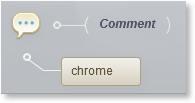
In a script that opens a "Chrome" channel,

If we ask to retrieve the value of the “Application name” in the special values,
Then the name of the application opened by the channel will appear.
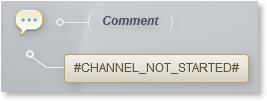
🔸 Warning
If the channel is not started, then the value cannot be retrieved.
Other scripts variables
Allows you to reference and retrieve the value of a variable from another script in the project, thereby facilitating communication and the transfer of results between different stages or sequential test scenarios.
Property variable
It is possible to create .properties data files, which are composed of property variables.
You can create a .properties file. from the project explorer, in the data files menu,
The property file looks like a data file with a “key” column and a “value” column.
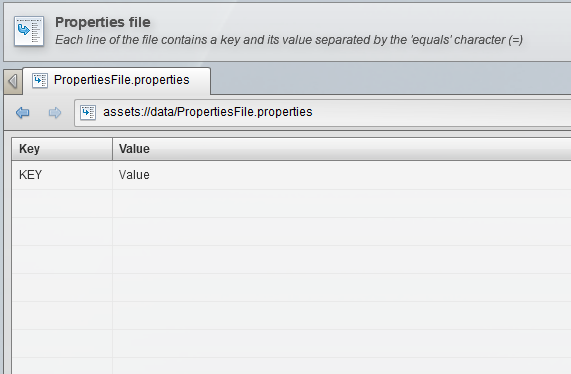
Example :
Key : Channel
Value : Chrome
You can also import .properties files from your own computer.
You can sort the values alphabetically using the small arrows in the columns.
You can find the property variable, $prop, in all fields with a burger menu.
In an action, add a special value and select “property variable”.
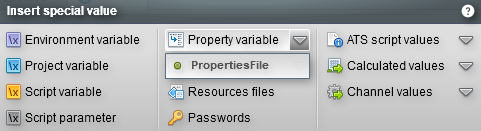
Select the property file and the key with the value
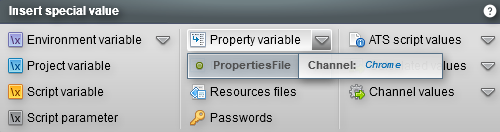
This will retrieve the value from your properties file
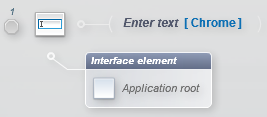
$env variable with the property variable
Environment variables defined by playlist type can be used in conjunction with the property variable.
With this action, you can quickly switch from one value to another in all fields that include a $env.
In an action, select property variable from the special value menu
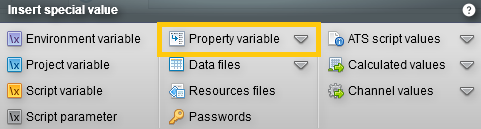
Then, change the property key field with an environment variable ($env).
Example :
If you create an environment variable:
Webbrowser = url1
And a property variable:
Channel = Chrome
Then, you can change the field “Channel” with $env(Webbrowser) to retrieve the value “url1”
If you wish to modify the value of this variable, you can change the value from the environment variables menu so that it applies to the entire project.